This guide will help you set up VPN on your TV. Below is a detailed guide on how to set up VPN on your TV.
1. Check if VPN can be installed on your TV
First, you need to check if your TV has Google Play.
- Press the "Home" or "Menu" button on your remote.
- Look for the Google Play app icon.
2. If Google Play is not available
In this case, you simply need a small Smart TV stick that will give you access to all smart TV features, even if your TV is old.A great option is the Xiaomi Mi Stick.
- Size — like a regular USB flash drive.
- Connects to any HDMI port.
- Available in most stores and marketplaces.
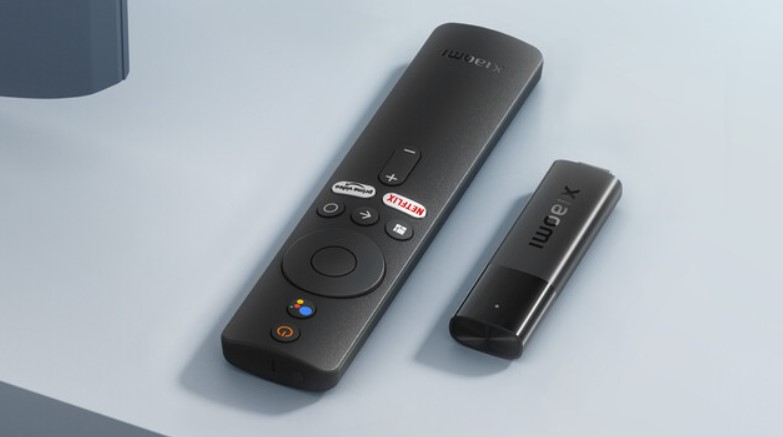 After connecting the stick, you'll have Google Play, and you can continue with the instructions below.
3. Accessing Google Play
If Google Play works on your TV, open the app.
If the system prompts you to sign in to your Google account, complete the authorization.
After successful login, proceed to the next step.
4. Installing the Happ app
- Open Google Play.
- Click on the search icon.
- Type "Happ".
- Find the app with this icon:
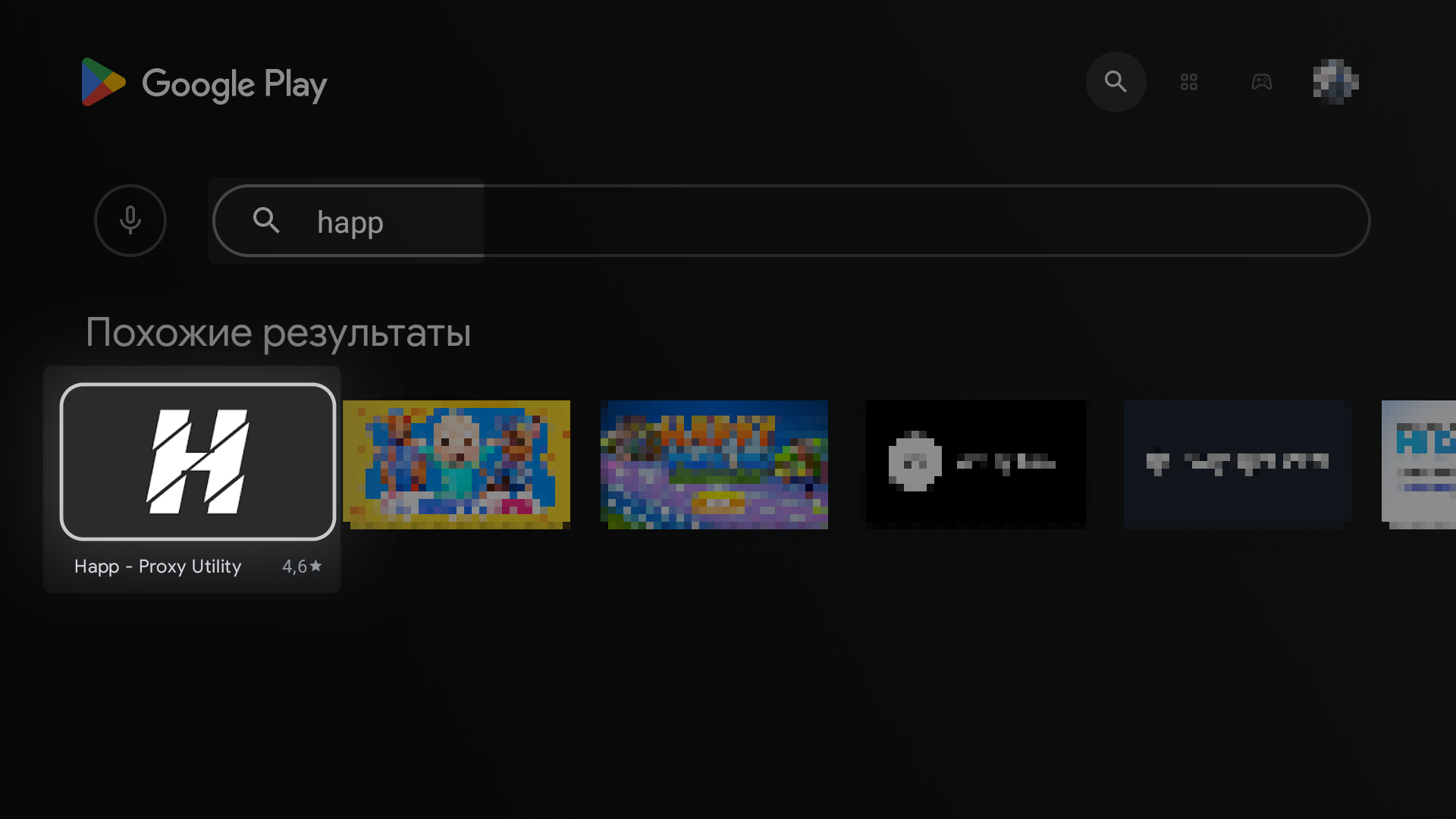
- Install it and open it.
5. Setting up Happ on your phone
To add configuration to your TV, you should already have the Happ app installed on your phone with a configured setup.
- Open the Happ app on your phone.
- Tap "+" → "Scan QR code" in the top right corner.
- Scan the QR code displayed on your TV.
- Check the box next to the configuration you need.
- Tap Send.
6. Connecting to VPN on TV
Now all that's left is to connect:
- On the Happ screen, press the speedometer button.
It will check which server works fastest. - Select the server with the lowest latency (ms).
- Highlight the large power button and press OK on your remote.
If you see the "Connected" status — everything is ready! VPN on your TV is working, and now you can watch free internet without restrictions.
Get fast and reliable VPN. First 3 days free in our Telegram bot: @vpnetvpn_bot.
For new users 30% discount with promo code: BLOG